
 KANTO SYNCRO FOR MAC
THE POWERFUL SOFTWARE TO SYNCHRONIZE LYRICS WITH SONG
Kanto Syncro for Mac is the updated and improved karaoke synchronization software that allows you to easily create professional Video Karaoke files by matching lyrics with your songs.
With its new engine and real-time preview system, you can synchronize words faster, more accurately and export high quality video karaoke files in just a few clicks.
Download now the free trial version of Kanto Syncro for MAC

Supports MAC OS > 10.8
Demo Limitations: it saves the first 60 sec of the synchronized files. Buy Full Version Now
For Windows Version of Kanto Syncro click here>
Here are the main features of Kanto Syncro for Mac:
 Support MP3 files as input
Synchronize lyrics with song
Save output formats in MP4, MPG or AVI formats
“Preview” feature to see the result before saving the file
Possibility to slow down or speed (in real-time) the song to optimize the synchronization
User-friendly interface and easily to use
It creates high quality video files
It allows you to customize lyrics font/color and background image
“Syncro Delay” feature to adjust the lyrics synchronization over the song
- NEW Scrolling Karaoke Mode for smooth teleprompter-style lyrics
How to use Kanto Syncro for MAC:
Step 1. Download and Install Kanto Syncro for MAC
Download the app, install it and open it.
If you see this error “Kanto Syncro can’t be opened because it is from an unidentified developer” then follow this steps:
- Right-click (or control-click) the application in question and choose “Open”
- Click the “Open” button at the next dialog warning to launch the app anyway
This is the default window of the program:

Click on FREE TRIAL to go on with the trial version. The trial version allows you to synchronize the first 60 sec of the song.
Step 2. Import Audio Track and Lyrics File
After clicking on FREE TRIAL button, you will see this new window:
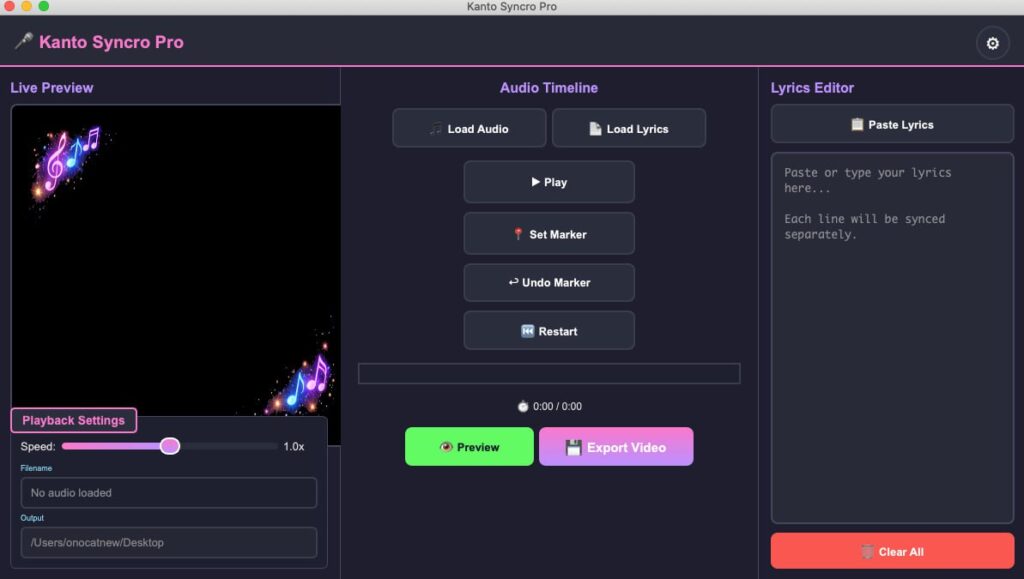
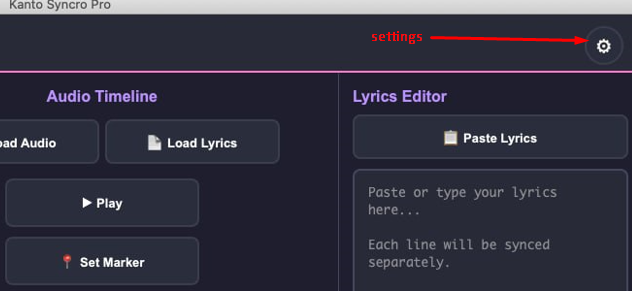
IMPORTANT NOTE:Before starting, make sure that all the settings in the OPTIONS menu are set Click on the GEAR ICON at the top right, and then click RESET SETTINGS button to set the default settings in the program, as shown in the following screenshot:
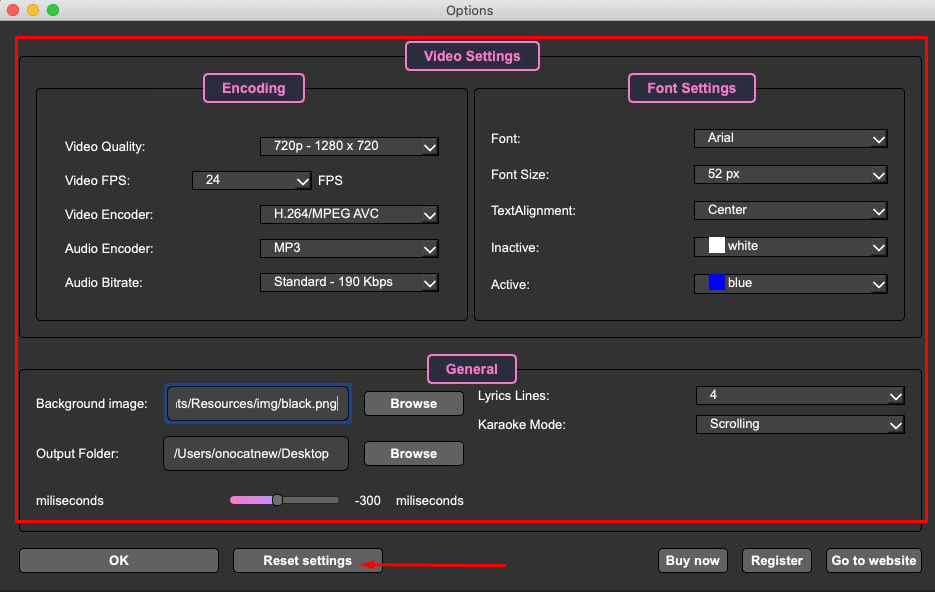
Now click OK and return in the main windows of the program. You have to import the song file by clicking on the top left LOAD AUDIO.
To load the lyrics you have two possibilities:
1. Click at the top right of “Load Lyrics” to load lyrics from a txt file
2. Copy the lyrics from a text file or internet page and click on “Paste Lyrics”
After importing the lyrics you’ll see the words in the program. Now everything is ready to go on with the synchronization!
Spet 3. Synchronize Lyrics with the Song
Press PLAY (1) and click SET MARKER (2) on each word.
Words are highlighted instantly and the scrolling mode keeps the current line centered for easier reading.
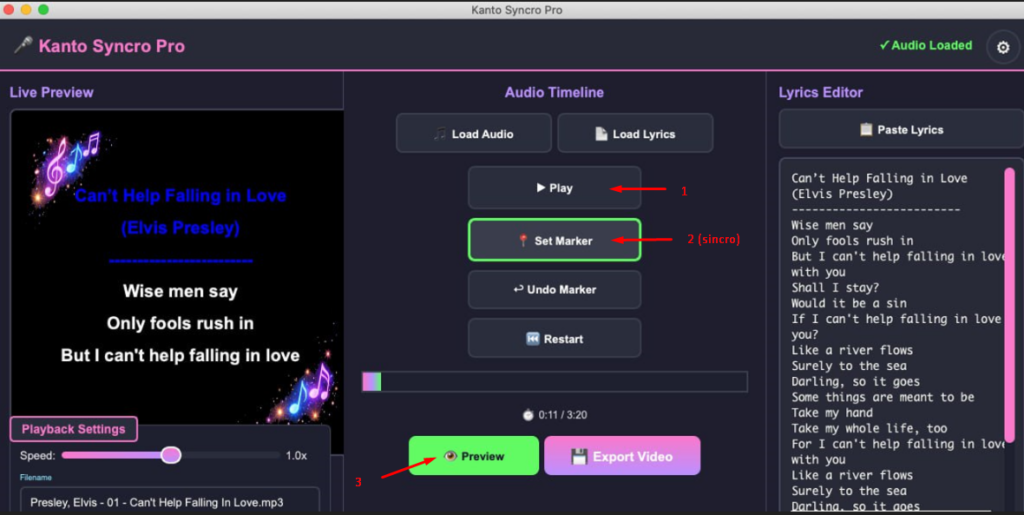
In addition to the SET button, this software offer other featurs to apply during and after synchronization.
Here are the details:
> UNDO: clicking on UNDO you can undo the last click, and so correct the mistake committed
> RESTART: This button is activated when you click STOP and allows you to repeat again the synchronization from scratch
> PREVIEW: it allows you to preview the synchronized karaoke file
> SPEED: slow/fast playback
Step 4. Export the synchronized song with lyrics
After synchronization you can proceed exporting you karaoke files by clicking the EXPORT VIDEO button.
You’ll see this window:

You will be able to choose from:
- MP4/MPG Video format
- AVI Video format (high video/audio quality but higher size)
Click on the desided format to export and save the song with lyrics.
NB: If you are using the “unregistered” version, the program will save only the first 60 seconds of the synchronized lyrics. To remove this limit you need to purchase the program.
That’s all! As you can see you need just a few simple clicks to create your own custom karaoke songs!
KANTO SYNCRO – OPTIONS
If you want to customize even more your karaoke songs, go to OPTIONS menu.
Here you’ll be able to change:
- Video: resolution, FPS, encoder
- Font: size, color, style, alignment
- Background: choose images from the app’s /img folder
- Sync delay: fine-tune timing
- Output folder: choose where videos are saved
Create professional karaoke videos in minutes.
Fast. Simple. Powerful.