
If you’re looking for an easy way to remove instruments from a song or a music video, such as drums, bass, guitar, piano, or vocals, Kanto Instrument Remover is the perfect solution.
This software uses advanced audio separation technology to analyze your track and split it into multiple components, allowing you to choose exactly which instruments to remove from the final mix.
It supports both audio files and video files, so you can work not only with MP3 or WAV, but also with MP4 videos.
Download Kanto Instrument Remover
To get started, download and install the software on your Windows PC.

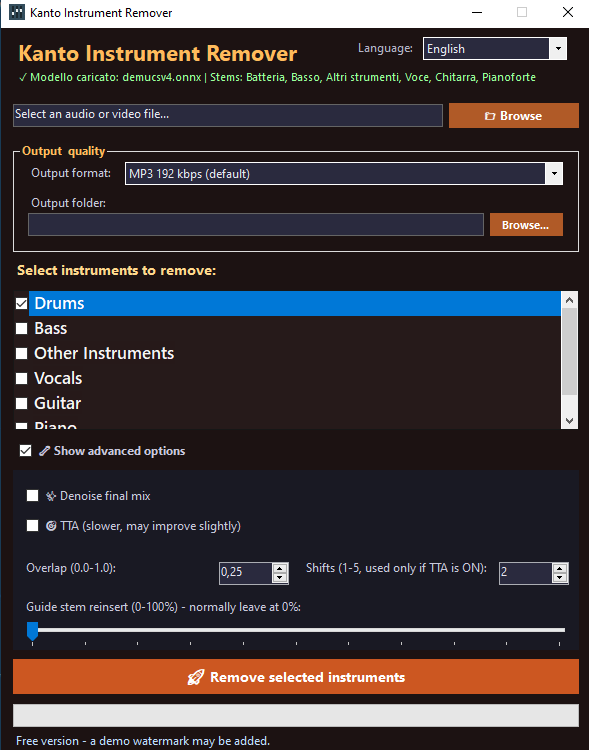
After installation, launch the program. You will see a simple and user-friendly interface like the one below.
What Can You Do with Kanto Instrument Remover?
With Kanto Instrument Remover, you can:
- remove drums from a song
- remove bass from the mix
- remove vocals to create a karaoke track
- reduce or remove instruments like guitar and piano
- create customized versions of audio or video tracks
This makes it a powerful tool for musicians, singers, DJs, content creators, and anyone who wants to practice or remix music.
Supported Formats
The software allows you to load both audio and video files.
- Audio input: MP3, WAV and other supported formats
- Video input: MP4
- Audio output: MP3 or WAV
- Video output: MP4 (if the input file is a video)
When you load a video file, the program automatically extracts the audio, applies the selected instrument removal, and then rebuilds the final video with the processed audio.
Step-by-Step Guide
1. Select an Audio or Video File
Click the Browse button next to the file selection field.
Choose the file you want to process from your computer. This can be an audio file or a music video (MP4).
Once loaded, the software will automatically detect and display the available stems, such as:
- Drums
- Bass
- Other Instruments
- Vocals
- Guitar
- Piano
2. Choose Output Format
In the Output quality section, you can select the format of the final file.
- MP3 192 kbps – balanced quality and size
- WAV – maximum audio quality
If you are processing a video file, the software will also generate a new MP4 video with the modified audio.
3. Select Output Folder
Use the Output folder field to choose where the processed files will be saved.
This helps you keep your results organized, especially when working with multiple files.
4. Select Instruments to Remove
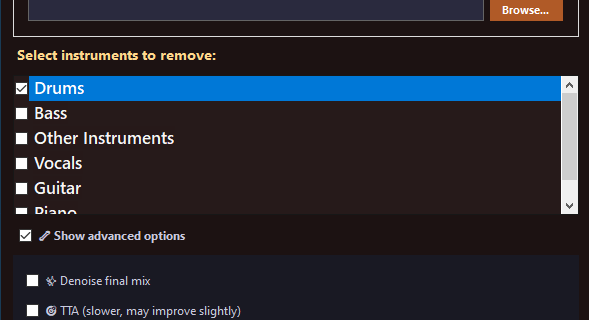
The most important part is the Select instruments to remove section.
Check the instruments you want to remove from the track.
For example:
- select Vocals to create a karaoke track
- select Drums to remove percussion
- select Bass to remove low frequencies
- combine multiple options like Vocals + Drums
Important: you must select at least one instrument, otherwise the program will show a warning message.
5. Advanced Options
Enable Show advanced options to access additional settings.
- Denoise final mix: reduces artifacts in the final output
- TTA: slower processing that may improve quality slightly
- Overlap: improves transitions between audio chunks
- Shifts: used only when TTA is enabled
- Guide stem reinsert: allows partial reinsertion of guide stems
If you’re unsure, you can safely leave the default values.
6. Start the Process
Click the button:
Remove selected instruments
The software will process the file and generate a new version with the selected instruments removed.
Practical Use Cases
Create a Karaoke Track
- Load your audio or video file
- Select Vocals
- Start the process
You will get a version without vocals, perfect for singing.
Remove Drums for Practice
- Load the file
- Select Drums
- Process the file
This allows musicians to practice along with the track.
Remove Bass or Other Instruments
You can remove bass or other elements to create custom mixes for study, remixing, or live performance.
Free vs PRO Version
Kanto Instrument Remover is available as a free demo version. In demo mode, some limitations may apply and a demo audio watermark may be added to the output.
To unlock all features and remove limitations, you can upgrade to the PRO version.

Tips for Best Results
- use high-quality input files
- choose WAV for maximum audio quality
- use MP3 for quick tests
- remove one instrument at a time for better control
- enable Denoise if you notice artifacts
Keep in mind that results may vary depending on the original mix of the track.
FAQ
Can I use it with video files?
Yes, MP4 files are fully supported.
Can I remove multiple instruments at once?
Yes, you can select multiple instruments simultaneously.
Can I create karaoke tracks?
Yes, simply remove the vocals.
Does it work with drums and bass?
Yes, you can remove both drums and bass.
Do I need to configure advanced options?
No, default settings work well for most users.
Kanto Instrument Remover is a powerful and easy-to-use tool for removing instruments from audio and video files.
Whether you want to create karaoke tracks, practice music, or remix songs, this software gives you full control over your audio.
Download the demo version and start creating custom tracks in just a few clicks.


