
 Kanto Audio Editor is a “midi & mp3 editor” that all music and karaoke fans should have on their PC. With this tool you can customize your midi & mp3 files and make them personalized and optimized for your voice.
Here are the main features offered by Kanto Audio Editor:
- Change tone, volume and tempo of your MIDI / KAR / MP3 files and save the changes on a new .MID / KAR / MP3 file
- Converts MIDI and KAR to MP3 Karaoke file, preserving lyrics and the tone/volume/tempo
- Supports changing the tone/volume/time of MP3 K5 files (Karaoke 5)
- Supports changing the tone/volume/time of KFN files (Karafun)
- Keep the text and lyrics synchronization after modifications or conversions
- Remove unwanted audio tracks from MIDI and KAR files, and creates a new MIDI / KAR
- Change the instruments of different MIDI/KAR channels and creates new MIDI / KAR
- Converts KFN to MP3 format with the tone/volume/tempo desired
- With the “Karaoke Merger” feature it allows you to merge midi/kar/mp3 to create medley (for midi check Kanto Midi Medley Maker )
DOWNLOAD KANTO AUDIO EDITOR
Click below to download the free trial version of Kanto Audio Editor:
Download Now (9MB)Supports Windows 11/10/ 8.1 / 8/ 7
The trial version allows you to convert/change/save the first 60 sec of each song, Buy now the full version
SCREENSHOT KANTO AUDIO EDITOR
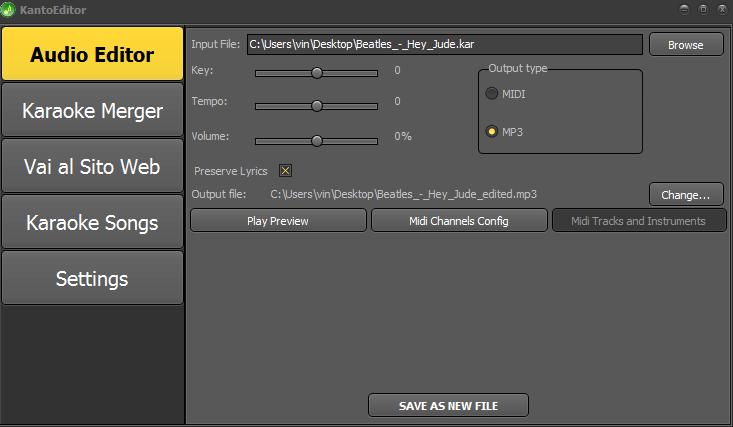
HOW TO USE KANTO AUDIO EDITOR
The software is very easy to use. Here are the steps to follow to edit or convert your songs:
Step 1. Click on the upper right of the software to select the file MID / KAR / MP3 / KFN to edit
Step 2. Choose the output format (MIDI or MP3)
Step 3. Change Tone (KEY), Tempo or Volume as desired. Click on “Preview” to listen the song before saving.
Step 4. Select the output folder, the name of the output file and finally click below on SAVE NEW FILE button.
Thats all!
If you want to activate/deactivate the midi/kar channels, click on “Midi Channel Config” button. You will see this window:
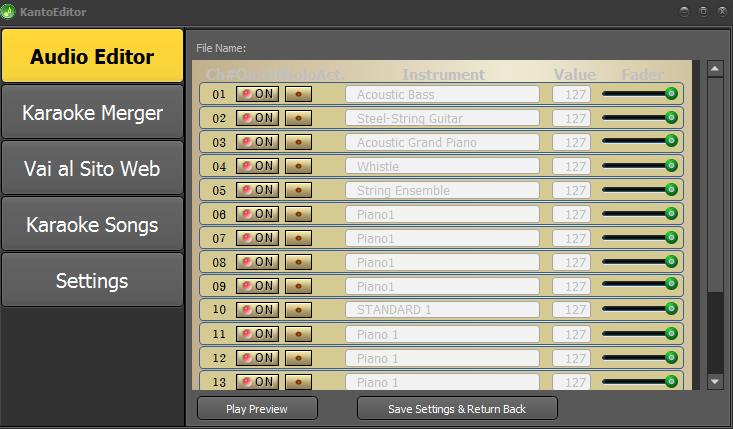
For example, if you want to disable the melody track in the midi song, you just have to to click on the “ON” at the track n° 4. Then click on SAVE SETTINGS. By clicking on “Play Preview” you can listen the midi file and check the result.
Instead, if you want to change some musical instruments used in the midi/kar file, you have to click on “Midi Tracks & Instruments” button and hence make the appropriate changes.


